Pak ID App Not Working – How to Fix 2026
Your CNIC renewal is half finished, the payment is waiting, and the Pak ID app closes, freezes, or refuses your fingerprints again. This is the moment most people search for help, because the Pak ID app not working problem always seems to arrive in the middle of a real application, never before it.
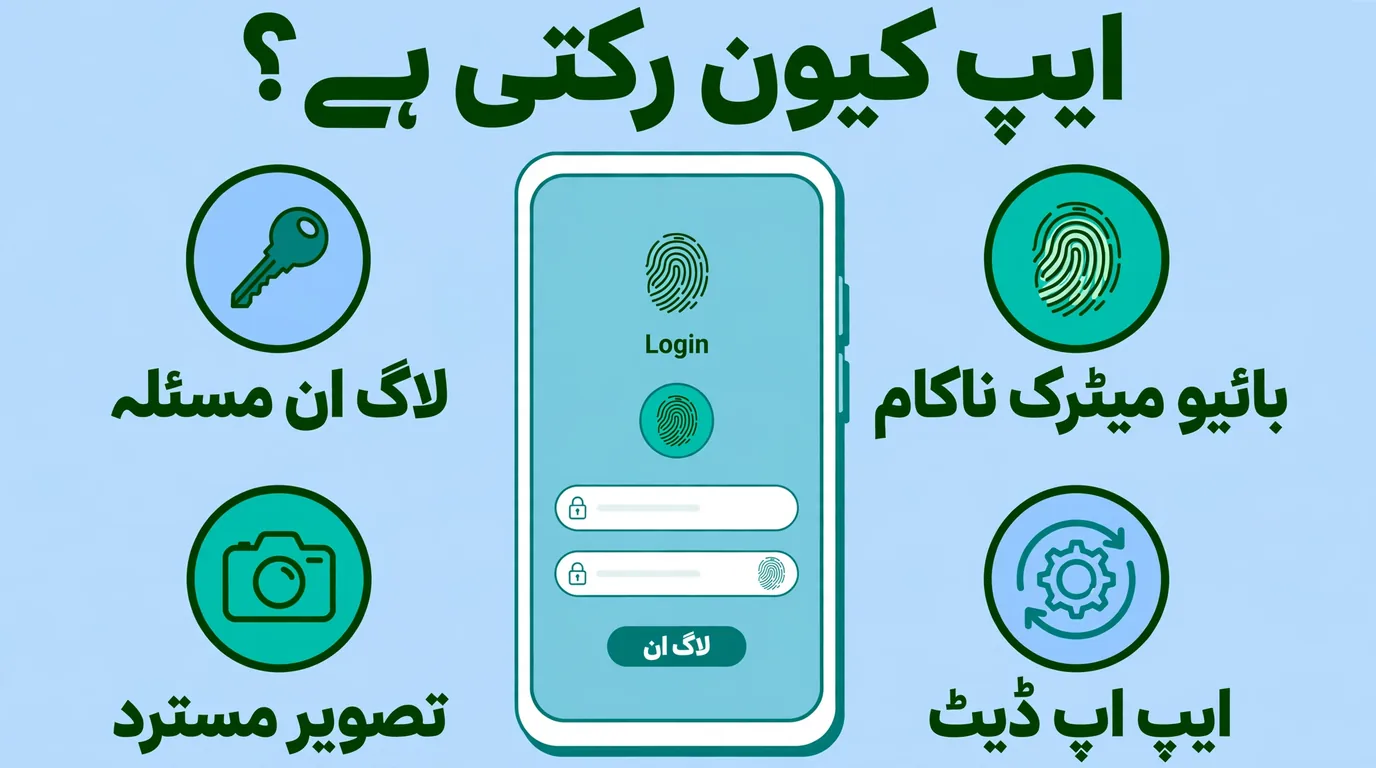
The Pak Identity app is NADRA’s official mobile service for identity documents. According to NADRA’s own app store listing, it handles modification, renewal and reprint of CNIC, and new, modification, renewal and reprint of NICOP, with account creation through email, mobile number and biometric verification. When it stops working, the cause is usually one of a few known failure points: login and OTP, biometric capture, the camera and photograph step, document uploads, an outdated app, or a busy NADRA server.
This guide works through each problem in order, with the fix you can try yourself first. It also marks the line clearly: some problems sit inside your phone and you can solve them in minutes, while others sit inside your NADRA record, and no phone setting will fix those.
Quick Answer: First 6 Fixes to Try
If the app has just failed on you, try these six steps before anything complicated. They solve the most common cases of the Pak ID app not working on both Android and iPhone.
- Update the app. Open Google Play or the Apple App Store, search for Pak Identity, and install any pending update. An old app version is a common reason for app crashing and login loops.
- Restart your phone. A restart clears temporary faults that block the camera, the fingerprint step, and the app itself.
- Check your connection. Switch to stable Wi-Fi or a strong mobile data signal. Biometric verification and uploads fail easily on a weak connection.
- Clear cache (Android). Go to Settings, then Apps, then Pak Identity, then Storage, and tap clear cache. Do not clear data yet, because that also removes your saved login.
- Give the app its permissions. In the same settings screen, allow camera and photo access. Without camera permission, the photograph and fingerprint steps cannot start.
- Wait and retry once. If the failure looks like a server problem, close the app, wait, and try again at a quieter time instead of retrying again and again.
If none of these six steps work, find your exact problem in the sections below and follow the fix written for it.
Why the Pak ID App Stops Working
The app asks a lot of your phone. It verifies you with fingerprints and facial verification, captures an ICAO based photograph, takes your digital signature, and uploads your documents. A failure at any one of those steps looks like “the app is not working”, but each failure has a different cause and a different fix.
| Problem you see | Likely cause | Who can fix it |
| OTP not received | Wrong number, weak network, code sent to email instead | You |
| Account locked or password rejected | Repeated wrong attempts, forgotten password | You, through password recovery |
| Biometric verification keeps failing | Poor fingerprint capture, bad light, dirty camera lens | Usually you |
| Photograph rejected | Photo quality, camera permission, poor lighting | You |
| App crashing or not opening | Old app version, low storage, phone software fault | You |
| Documents rejected after upload | Blurry uploads, unreadable scans | You |
| App works but the fee option never appears | Application still waiting for initial approval | Wait, then NADRA |
| Citizen number cannot be verified | A problem inside the NADRA record itself | Only NADRA |
| Your recorded details do not match | Old or incorrect data in the NADRA record | Only NADRA |
The sections below follow the same order, and every fix starts with the simplest step, so you do not reinstall the app for a problem that a clean camera lens would have solved.
Pak ID App Login Problems
Login is where most blocked account and code problems begin. NADRA’s listing confirms that account creation uses your email, mobile number and biometric verification, and that you log in through biometrics afterwards. So a login failure can sit in three places: the one time code, the password, or the account itself.
OTP Not Received
An OTP not received message usually has a boring cause. Check the mobile number digit by digit, because an incorrect mobile number sends the code to the wrong phone. Then check the email account you registered with, including the spam folder and junk folder, because the recovery code is sent to email. If your SIM is not registered in your name, or the network is congested, the SMS can also arrive late. Wait a few minutes, then request the code once; repeated requests can leave you entering an expired one.
Still nothing? Restart the phone to refresh the connection, then request the code one more time. If codes never arrive on this number at all, use the website method described later in this guide.
Forgot Password or Locked Account
For a forgot password problem or a locked account, use the recovery flow that NADRA itself has shared publicly. On the login screen, enter your ID card number and tap Forgot Password. Enter your registered email address; if you no longer use that email, enter a current active email instead. Tap the button to proceed, and an OTP sent to email will follow. Enter that code, complete biometric verification, and set new password when the app asks for it.
Two habits prevent this problem from returning. First, use an email account you actually open, because recovery depends on it. Second, follow NADRA’s own advice given with these steps and store login information safely somewhere private, instead of relying on memory and locking yourself out again after a few wrong attempts.
Account Already Exists or Number Registered to Another Account
An account already exists message normally means the same CNIC used before already has an account, perhaps one you created during an earlier application and forgot about. Do not try to create a second account. Use password reset with that CNIC and the recovery steps above to get back into the original account.
A related problem reported by users is a phone number registered to another account, for example a family member who once used your SIM, or a recycled number. Try password recovery first. If the app still ties your number to an account you cannot open, it needs NADRA to sort out the account, as the NADRA only section explains.
Biometric Verification Keeps Failing
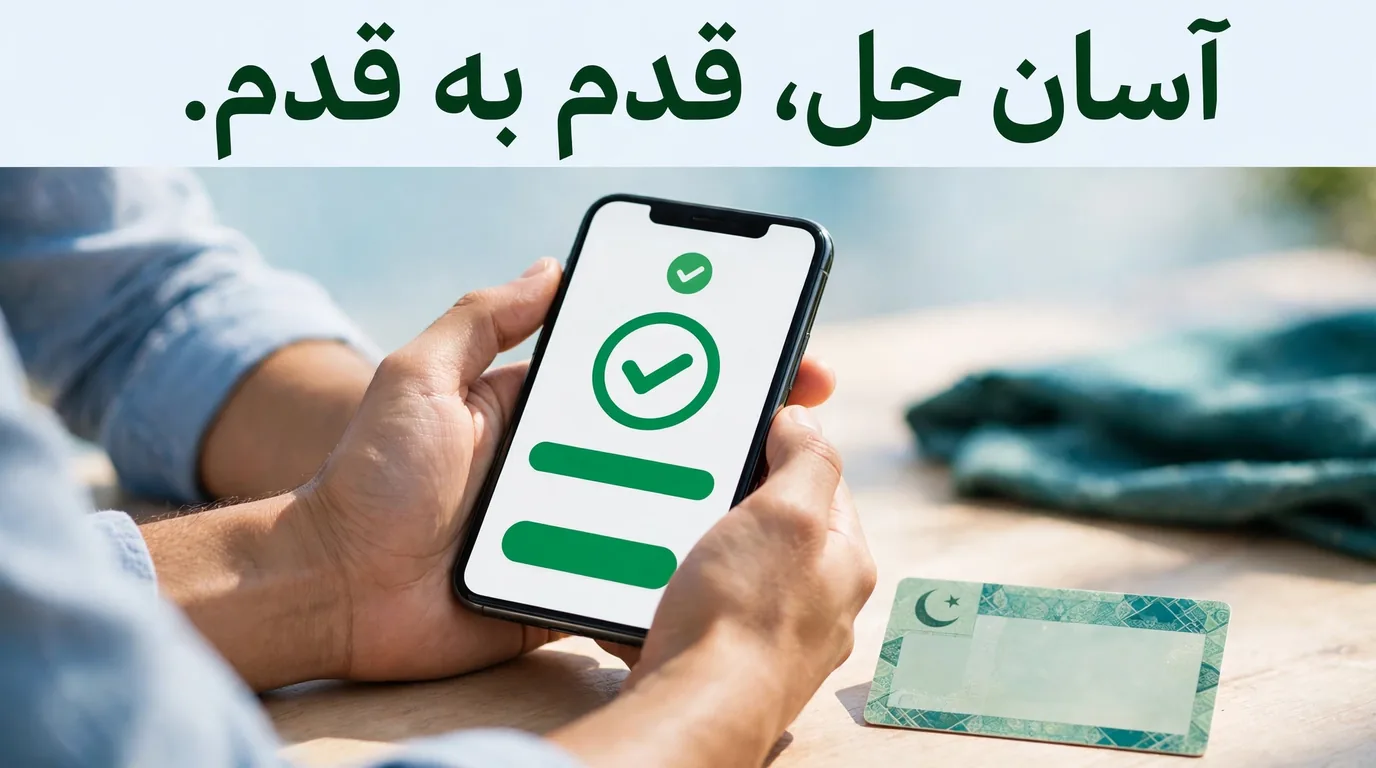
Biometric failure is the complaint users report most often in the app’s Play Store reviews: the scan completes, then verification keeps failing. The app captures fingerprints acquisition through mobile camera, so it is judging picture quality as much as your finger. Treat it like taking a very careful photograph, not like pressing a scanner.
Fingerprints Through the Camera
Start by cleaning the camera lens, and wash and fully dry your hands. A wipe sensor habit belongs to office scanners; on a phone, the lens and your fingertip are the sensor. Place your hand on a flat, plain surface in strong, even light, hold the phone steady, and let the app frame the fingers itself instead of moving your hand closer and further away. If one finger keeps failing, try a different finger, because worn or dry skin on one fingertip is common, especially for older users and manual workers.
If you see biometric verification stuck on one screen for a long time, your connection may have dropped mid check. Move to a stronger signal, close the app fully, and start the verification again.
Face Verification and the “Not Enough Light” Problem
For facial verification, light is the whole game. A widely shared letter in Dawn newspaper described the app repeatedly showing a not enough light alert even in a bright room, and users report the same in store reviews. Face a window or bright light so the light falls on your face, not behind you. If the app still complains, an auxiliary light source such as a lamp near your face often works better than the phone flashlight. Hold still when the liveness check runs and follow its on screen movements slowly.
If the App Asks You to Wait
After several failed attempts, the app may show a waiting message before it lets you log in again. One Play Store reviewer described a cool-down window message asking them to wait before the next login. If you see a waiting time on your screen, respect it. Repeated retries during the wait do not speed anything up and can restart the problem. Use the time to fix the real cause: better light, a cleaned lens, a different finger, and a stronger connection, then try once, carefully.
Camera and Photograph Rejected
The photograph step uses ICAO based photograph capture, the same standard used for passport photos, so the app is strict about what it accepts. A photograph quality error usually means the picture was too dark, too blurry, taken against a busy background, or your face was partly covered or turned away.
First rule out a camera permission problem. Open your phone settings, find the Pak Identity app, and make sure camera access is allowed; without it you may also hit a camera not opening fault that looks like an app bug but is only a denied permission. Then retake the photo facing a plain, light coloured wall, in bright even light, phone at eye level, face fully visible, looking straight at the camera.
If every attempt ends in facial verification failed even though the CNIC photo is genuinely you, the gap may be between your current face and an old record photograph, for example after many years or a major weight change. That is a record matter, covered in the NADRA only section below.
App Crashing, Freezing or Not Opening
When the app itself will not stay open, work through this order and stop as soon as it behaves:
- Update the app from the official store listing. Crashes after a phone software update are often fixed by the newest app version.
- Restart the phone, then open the app before anything else, so it gets full memory.
- Clear cache on Android (Settings, Apps, Pak Identity, Storage, Clear Cache), then try again.
- Free up storage. A phone with almost no free space fails at photo capture, downloads and updates. Delete or move large files until a few hundred megabytes are free.
- Update phone operating system if an update is pending, because very old system versions clash with newer app builds. On iPhone, NADRA’s listing states the app requires iOS 16 or later.
- Uninstall and reinstall as the last step, downloading again only from the official listing. One reviewer reported that reinstalling finally cleared a stuck login wait on their phone.
If your phone shows a device not compatible message in the store, the app cannot be installed on that handset at all. Do not download the app file from random websites to work around this; use the Pak ID website on the same phone’s browser instead, as the next sections explain, or use a newer phone for the application.
Document Upload Errors
The app’s document upload step rejects files it cannot read, and most rejections come from the photograph of the document, not the document itself. Documents rejected after submission are commonly just blurry uploads: shadows across the page, cut off corners, glare on a laminated card, or a screenshot of a scan instead of a clear original.
Retake each document photo on a flat surface in bright light, all four corners inside the frame, text readable when you zoom in. Upload clear documents one at a time on a stable connection, and let each upload finish before moving on. If an upload keeps failing at the same point, switch between mobile data and Wi-Fi and try again.
One more trap: if the app shows a record detail that is wrong and offers no edit option on that screen, do not force the application through. A single reviewer reported exactly this with a name error message. Record mistakes belong to the NADRA only section below.
Server Down, Maintenance or a Missing Fee Option
Sometimes the problem is not yours at all. NADRA publishes planned system upgrade notices on its portal; a dated example announced the app and web portal would be unavailable during a two hour upgrade window. During maintenance or peak load, logins hang, verifications time out, and pages load blank.
The practical response is patience, not reinstalling. Close the app and retry at an off peak time such as early morning. Your application is tied to your account, not to the app session, so waiting does not lose your progress. If you already submitted and want the status, our guide on the NADRA tracking ID explains how to follow an application without reopening the app.
A special case is the missing payment option. Reporting on NADRA’s clarification explains that the fee option appears after the application passes initial approval, which can take up to 48 hours, and a “Ready for Approval” status simply means the application has reached the approval stage. If the option is still missing after 48 hours, NADRA’s reported advice is to contact the helpline 051-111-786-100 published on its official website or visit the nearest NADRA Registration Centre. A payment failed message is different: that is usually a banking issue on the card or account side, so check your balance and limits, then use retry payment once the fee option is visible.
When to Use the Pak ID Website Instead
The app is not the only door. The official Pak ID web portal at id.nadra.gov.pk runs the same Pak Identity services in a browser, and it is the right escape route when your phone is too old for the app, the app keeps crashing after a clean reinstall, or the camera on your handset is simply not good enough for biometric capture.
The portal lists NADRA products including CNIC and Smart ID, NICOP and Smart NICOP, Pakistan Origin Card, FRC and cancellation services. One limit is stated on the portal itself: you cannot apply for a fresh or new CNIC from the website. Renewals, modifications and reprints are the natural website tasks; our CNIC renewal online guide walks through the full renewal on both platforms. Overseas readers will also find the portal route in our guide on updating your NADRA record from abroad online, and NICOP applicants should keep the main NICOP Pakistan guide open beside whichever platform they use.
Use the same registered email and number on the website that you used in the app. Creating a second account on the portal with different details is how duplicate account problems start.

When Only NADRA Can Fix the Problem
Everything above is phone side. The problems in this section are record side: they live in NADRA’s database, so no update, cache clear or reinstall can touch them. Recognizing them early saves you days of pointless retries.
- Citizen number not verified. If the app says your citizen number not verified, the check against the central record is failing. Only NADRA can inspect and correct that record.
- Biometrics that never match. If your fingerprints fail in the app again and again, and also fail the careful retry steps, your stored fingerprint record may be worn or outdated. NADRA can recapture your biometrics at a Registration Centre.
- Wrong details in the record. A name, father name or date of birth that the app shows wrongly, with no way to edit it in the app, can only be corrected through NADRA’s modification process with your supporting documents.
- An account tied to someone else’s number. If your mobile number stays registered to an account you cannot open or recover, NADRA has to untangle the account itself.
- A blocked or flagged CNIC. If your card itself is blocked, the app will keep stopping you. That has to be cleared at NADRA first; the app cannot unblock an identity record.
For all of these, the route is the same: visit your nearest NADRA Registration Centre with your original CNIC and the documents that prove the correct information, and ask for the record to be checked. Keep your tracking ID and a screenshot of the exact message ready, because a precise error description gets a precise answer. Never pay an agent or a shop to “fix” a record problem online; nobody outside NADRA can change the record, and sharing your CNIC images with strangers creates a real identity risk.
Protect Your Data: Fake Apps and OTP Safety
Every popular government app attracts copies, and a fake identity app is more dangerous than a fake game because it asks for your CNIC, your photograph and your fingerprints. Before you install or reinstall, check three things on the store page. The app name is Pak Identity. The developer is the National Database and Registration Authority. On Android, the genuine listing is the one at Google Play under package pk.gov.nadra.pakid; on iPhone, use NADRA’s official App Store listing. The app itself is free; you pay only the official document fee inside your application.
Then protect the codes. NADRA will never need you to read your OTP out to a caller, a WhatsApp contact, or a person in a shop. The attester verification through OTP and login codes are for your screen only. Type them only inside the official app or portal, never on a lookalike website sent by message. If someone asks for your code, that request is the scam.
Final Words
Most Pak ID app not working cases end with a simple fix: an update, a cleaned lens, better light, a patient wait for a code, or a switch to the web portal for one attempt. Work through the quick fixes first, then the section that matches your exact message, and you will solve the majority of failures yourself.
Keep the boundary in mind. If the app is telling you the record itself cannot be verified, matched or edited, believe it, and take the problem to NADRA with your documents instead of fighting your phone. And whatever route you take, keep your OTP and your CNIC images to yourself; the safest fix is always the official one.
Official Sources
- Pak ID Web Portal, NADRA: id.nadra.gov.pk
- Pak Identity on Google Play, developer National Database and Registration Authority: play.google.com
- Pak Identity on the Apple App Store, provider National Database and Registration Authority: apps.apple.com